Get key takeaways:
There are hundreds of improvements and changes in WordPress 7.0, most of which you’ll probably never notice. But there are some nice tweaks to existing features (and a few we don’t think are quite ready for primetime…) that we want to highlight.
Below are workarounds for some of the quirkier updates and suggestions for making some of the enhancements work for you, starting with the most controversial visible.
Undoing the überblue
The most obvious change is the new default dashboard color scheme. In particular, the blue is significantly brighter and more saturated. Many of us have found it quite… unpleasant.
If you feel the same, have no fear! You can switch to something more appealing in your profile.
Go to Users > My Profile and select the “Fresh” color scheme to go back to the old look. (This is a per-user setting, so feel free to pick any color scheme that you like.)
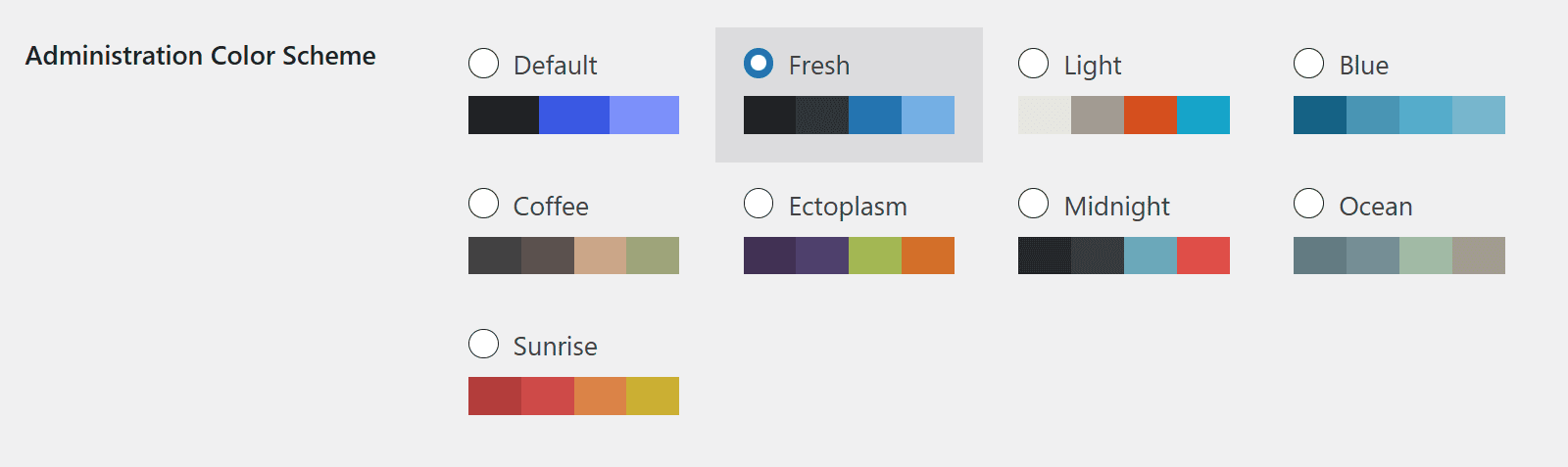
Pro tip: Changing the color scheme to “Sunrise” on a staging or development site makes it very clear which site you’re working on, helping you avoid any accidental changes on your live site.
Meta gone missing?
This is the change we’ve fielded the most questions about.
Extra settings in the Editor, like Yoast SEO or Hubbub Pro, live in “Meta Boxes.” In WordPress 7.0, there’s now a little “Meta Boxes” tray handle that can get pushed down to the bottom of the page, effectively hiding those settings.
They’re not gone, we promise!
To put them back, click and drag the bar up to reveal the “drawer.” You can also click on the “Meta Boxes” row to show or hide it, giving you quick access without having to scroll all the way to the bottom of your post. Slick.
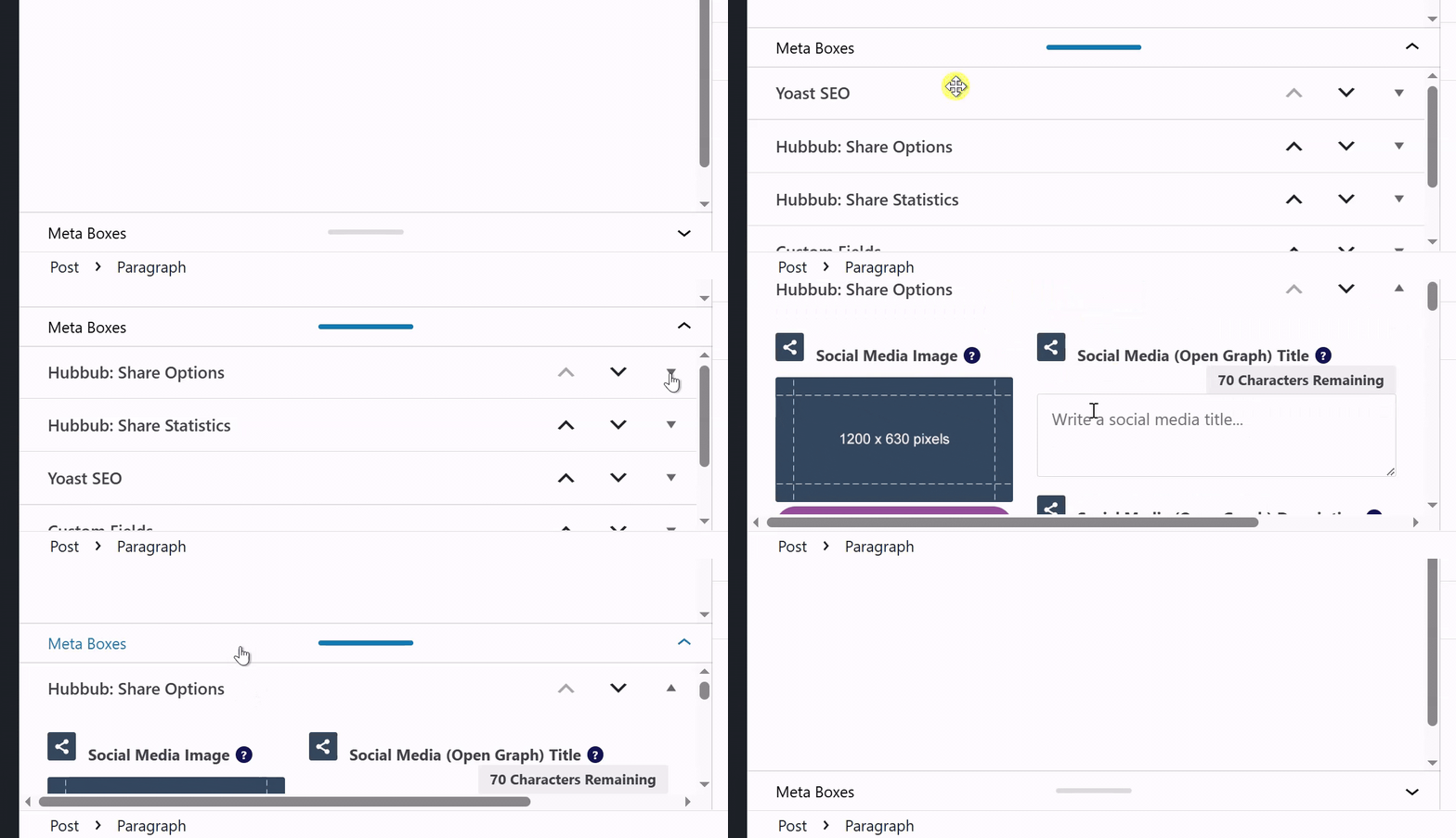
You can drag each Meta Box’s header to reorder them, or click to expand or collapse each one. To move one from the bottom of the Editor to the right sidebar, use the up/down arrows. (Make sure you have the right sidebar set to the “Post” tab, not the “Block” tab, when you do this.) This is handy for making the stuff you use often easier to get to (and hiding the stuff you don’t).
Times New Roman empire
WordPress 7.0 also changed how the Editor decides which styles to use, and depending on your theme, it can make the writing experience look… off. You may experience missing elements, or perhaps everything is suddenly in Times New Roman. 🤮

The setting behind it is called “Use theme styles,” and it’s toggled on by default.
If you’re on one of the newer “block” themes, this setting mostly does what you’d expect. If you’re on an older, more classic theme, this is the setting most likely to be the culprit behind a suddenly plain-looking Editor. The following fix may or may not work for you, but it’s worth a try:
Open any post or page in the Editor, and click the three-dot menu in the top right. Choose Preferences, and look under the Appearance tab. Try toggling it off (or on) and see which one actually looks right for your site (if at all).
If you’re using Feast or CultivateWP, this setting alone probably won’t solve it. Feast has released version 15.5.6 to to address it. For CultivateWP it’s best to reach out to them since your theme may require some custom adjustments.
Hide by device type
Before 7.0, you could “hide” a block — which was really only handy if you wanted to keep something around as a reference but not fully delete it. Now, you can selectively hide blocks on mobile, tablet, and/or desktop!
Why might you do this? Well, here’s a quick example:
You could insert horizontal images that show only on desktop and tablet devices and similar, vertical images that show on mobile, optimizing posts for readers on a variety of devices.
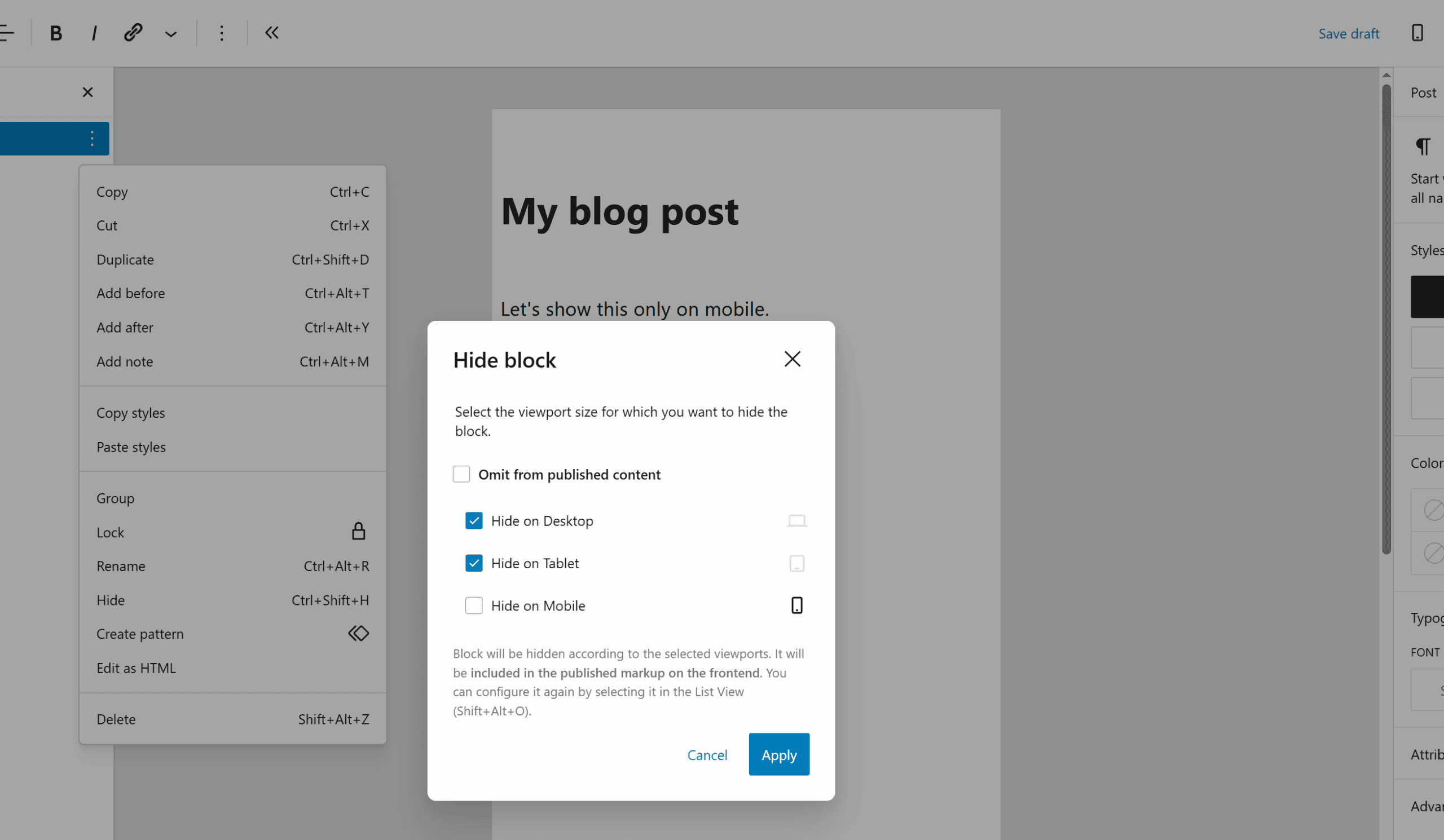
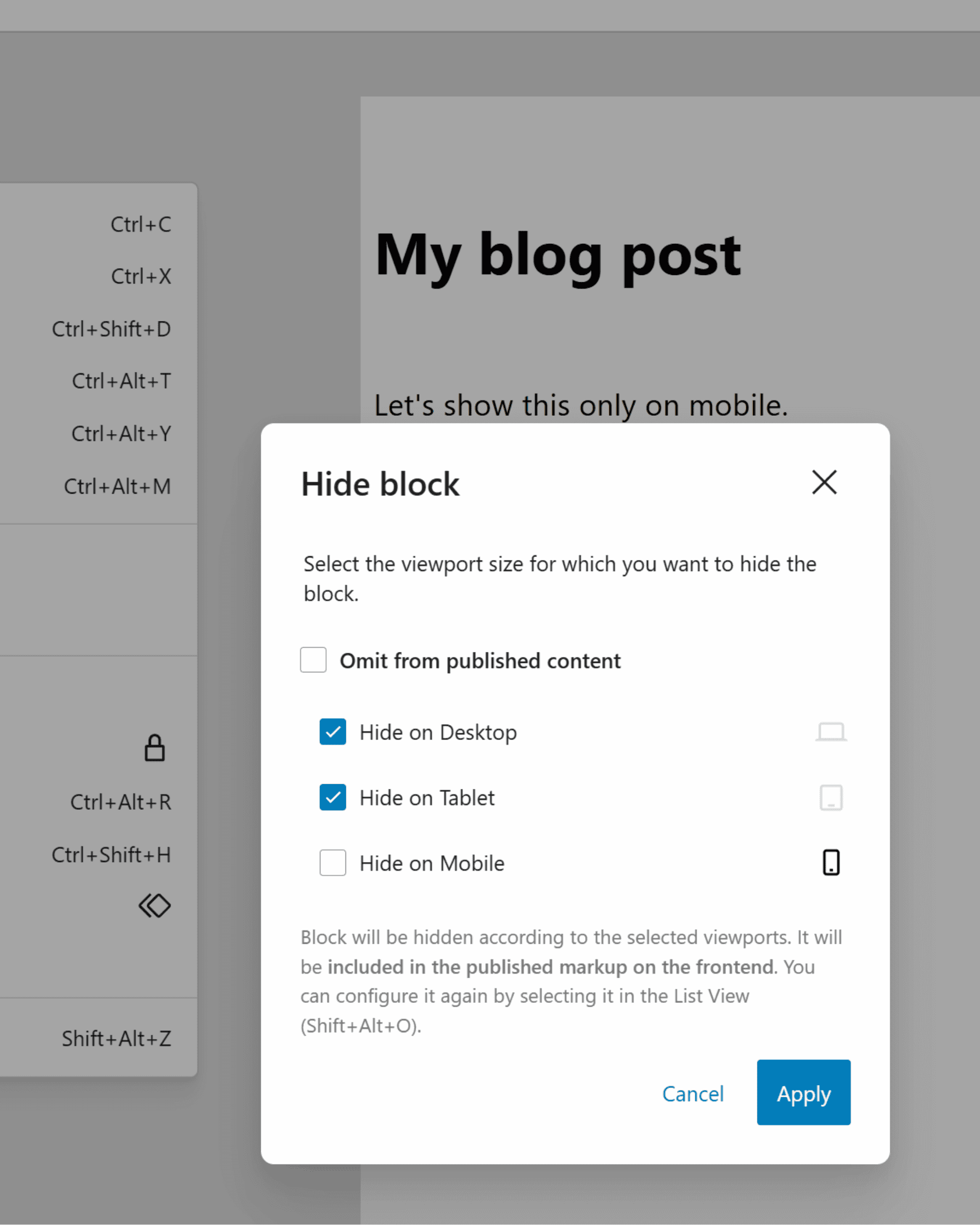
The logic feels a little backwards since you’re choosing to hide, not show, something. So if you want a horizontal image to show on desktop and tablet devices, you’d hide it on mobile and vice-versa.
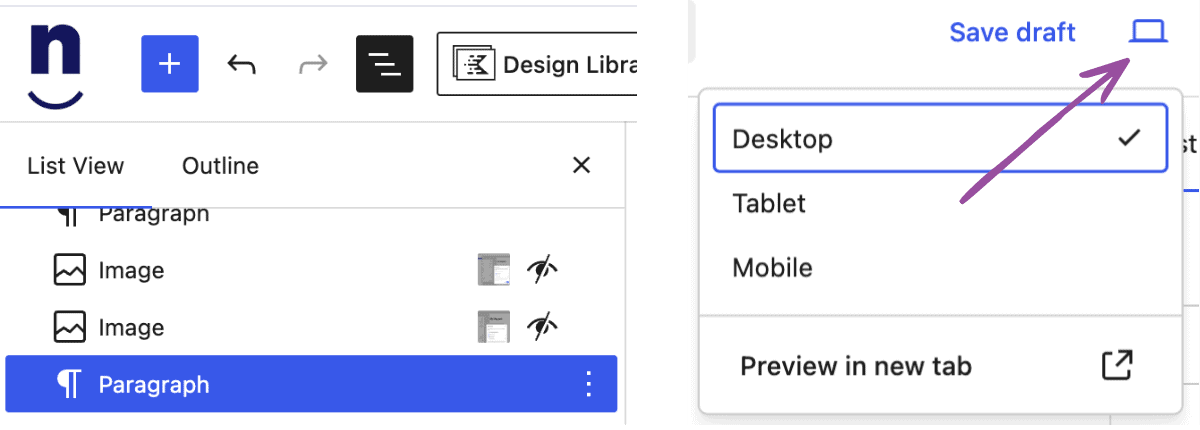
One potential gotcha: The Editor respects this setting, so to see the correct elements you’ll need to change the device preview using the device/view icon at the top right of the Editor. (You should still see all the blocks in the Document Overview on the left.)
Heads up! If you fully hide the block, the content is not output on the front end of the site at all. But if you only hide it from one or two device types, the content will still be in the front-end code (hidden via CSS), meaning it could be discovered by bots… or nosy humans.
A new link to an old shortcut
Although the Command Palette (and its corresponding ⌘K or Ctrl+K keyboard shortcuts) has existed since WordPress 6.3, there’s a new link in the top-left corner of the admin bar.
This may be useful if you’re a mouse-first navigator instead of a hotkey hero, but otherwise, this seems more like a style tweak that calls attention to the Command Palette shortcut.
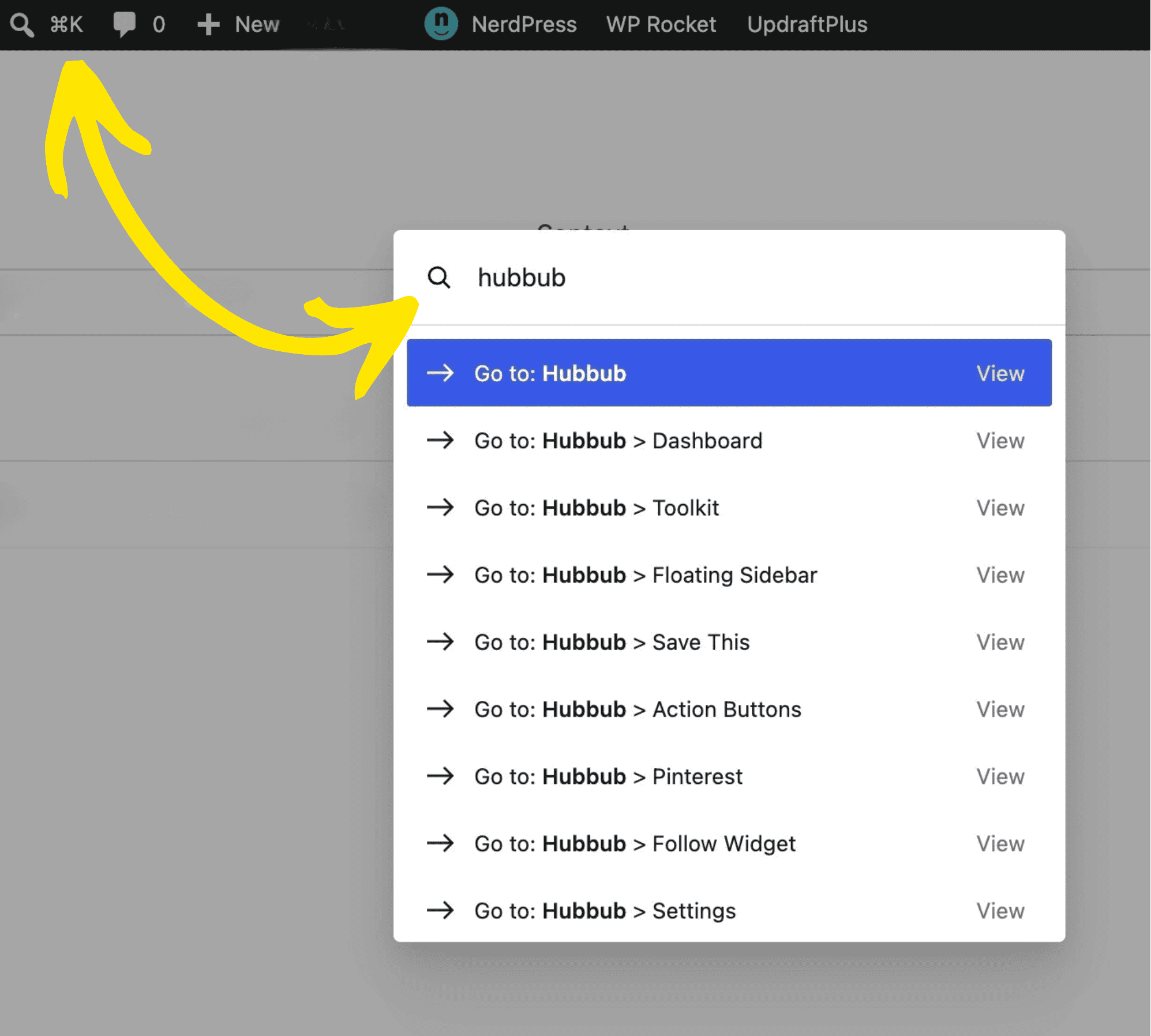
Regardless of which method you prefer, the Command Palette is a quick way to find what you’re looking for in the WordPress dashboard, especially if your site has a lot of plugins or settings with their own menus.
Custom CSS one block at a time
Ever wish you could adjust the style on a single element quickly and easily? Now you can apply additional CSS to individual blocks! 🎉
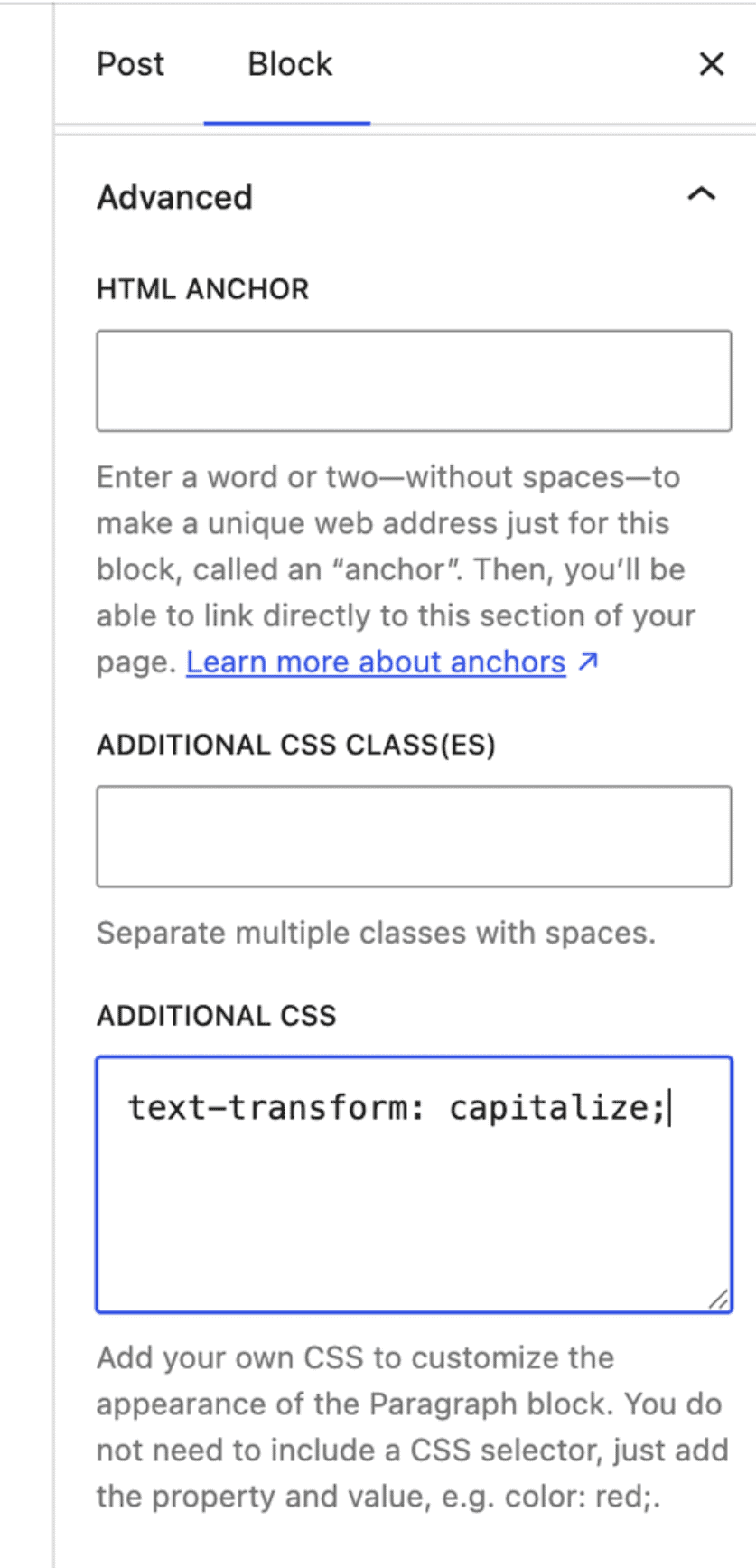
We don’t recommend leaning on this often since sitewide CSS still belongs in your theme (or the Customizer), but it’s handy for a quick, specific adjustment when you don’t want that CSS loading on any other page.
Visual Revisions: so close
The new Visual Revision comparison tool looks great, but right now it turns out that if a post has any “Classic” Meta Boxes still hanging around, it falls back to the old code-based comparison.
It’ll take plugins some time to transition to block-based Meta Boxes, so it may be a while before you get to use this shiny new feature.
AI Agents: kinda, sorta
The WordPress AI implementations are very confusing right now. 🙃
7.0 introduced “Connectors,” which lets you use external AI tools directly inside your dashboard. (For example, using AI to generate an Excerpt for a post while you’re working in the Editor.) However, this is still considered “experimental” and you’ll also need a plugin to use this functionality since WordPress doesn’t enable this out of the box.
There are also some foundations for using AI agents to make changes to your site from the outside, such as from Claude Cowork, but it’s still difficult to set up — and more importantly, we’re wary of letting AI run wild on a live site at this stage. So to solve that, we have a safer approach for our clients that we’re excited to launch soon.
If you’re a NerdPress client, keep your eyes on your inbox! 😉
Go deeper into WordPress 7.0
These are highlights we found in WordPress 7.0, but we know we’re only scratching the surface! This release introduced hundreds of new features, refinements, and optimizations designed to enhance your WordPress experience.
To learn more, check out the WordPress 7.0 Field Guide, but get ready for even more updates coming your way. WordPress 7.1 is already in beta testing and we’re looking forward to reporting on it soon. 🕵️♀️