Get key takeaways:
WordPress updates are one of those things that should be simple. Click “Update,” wait a few seconds, move on with your day.
But if you’ve ever had a plugin update take down your homepage, or watched a Core update turn your site into a white screen of doom, you know that feeling of dread mixed with “I knew I shouldn’t have clicked that.”
What we’ve learned after more than a decade of managing updates across hundreds of WordPress sites is that updates break sites for a handful of predictable reasons.
Once you understand the patterns, you can make much better decisions about when to update and what to watch for (or whether this is something you want on your plate at all!).
Why some WordPress updates break sites
A WordPress website isn’t one piece of software. It’s made up of WordPress Core, your theme, plugins, hosting, PHP, and sometimes custom code, and each of these is maintained and tested on its own timeline. A new version of WordPress Core might be ready on a Tuesday, but it might take your theme developer weeks to release a compatible update. Meanwhile, a plugin might depend on something core changed in that same release or a different version of PHP.
No one in this scenario is being malicious or careless — developers really would prefer their products not cause issues! — but this is how an open ecosystem with thousands of contributors behaves, and it’s why an update on your site can behave differently than it did for someone else.
With all that in mind, here are a few of the most common causes for site breakage from WordPress updates.
Cause Number 1: Plugin/Theme updates aren’t tested against your specific setup
Plugin authors usually test new versions against a fresh WordPress install and a default theme. In that clean environment, the update looks great so the developers make it available for everyone. But your site might have 20 plugins, a custom theme, and a code snippet someone dropped in functions.php in 2019 that nobody remembers. The update that passed in isolation hits a conflict in your setup because nobody tested that exact combination, and with hundreds of thousands of websites built on WordPress, testing every plugin with every combination is…impossible. 🥴
This is the most common scenario we see when updates break sites.
Cause Number 2: Hosting-related issues
Sometimes the update is fine, but the environment isn’t.
A new plugin version might require a newer PHP version. Or it might assume a server configuration your host doesn’t support (or hasn’t enabled). On budget shared hosting, updates can also time out mid-process — especially on sites with lots of plugins.
The same update can work perfectly on one host and throw a “fatal server error” on another. In that situation, the “broken” part is often the environment underneath, not the plugin itself.
Cause Number 3: The Snowball Effect
The longer you wait between updates, the bigger the leap you’re making when you catch up. Going from version 5.1 straight to 6.4 instead of making the smaller steps in between means you’re accepting sometimes months of changes, deprecations, and requirements all at once, often from many plugins and many developers in one session. That “snowball” amplifies everything.
Sites that haven’t been updated in 3, 6, or maybe even 12 months are the ones that tend to have the roughest time, but sites that update regularly (every couple of weeks — max) rarely break because each update is small.
If you’re doing updates yourself, here’s what helps most
Most website owners run their own WordPress updates, so you’re not alone (and plenty of site owners are careful and still get burned). But without the right method and forethought, your updates could go wrong quickly, so here are a few common misconceptions we often hear in the WordPress space which need correction.
“Auto-updates handle everything.” On a busy or highly customized site, auto-updates can break things, and what’s worse is it may happen while no one’s around to fix it. Even automated systems that check “before and after” usually only check for major issues, like a “white screen,” and not issues human eyes would spot. (We’re not fans of blanket auto-updates around here.)
“If I don’t update, nothing bad happens.” For a while, maybe this is true, but outdated plugins can have disclosed vulnerabilities and by the time you get around to updating them your site is already compromised. (And don’t forget about the snowball effect we mentioned earlier!)
“I’ll wait months until it’s proven safe.” A few days of caution is fine. Waiting months to update allows a growing pile of changes to accumulate, creating a bigger potential issue. (Once again, the snowball effect!)
“Every update is equally scary.” This one sounds like people speaking from their own negative experiences, so we hear you on this one. Changelogs usually tell you whether you’re looking at a small security patch or a major, site-altering jump. (This is also where it helps to look at the version numbers.)
There’s nothing wrong with being cautious when it comes to WordPress updates. But how you run your updates matters a lot: what you read before you click, what order you run updates in, how often you run them, and how you recover or double-check afterward.
The rest of this section is a playbook for updating safely, starting with where to look for information about what’s new.
Read the changelog
Every developer should keep a chronological log of the updates being made to the plugin or tool they’re working on, and the changelogs should be easy to find. (We link to Hubbub’s changelog right in the website footer.) Most of the time the changelog is also linked on the plugin update screen in your WordPress dashboard.
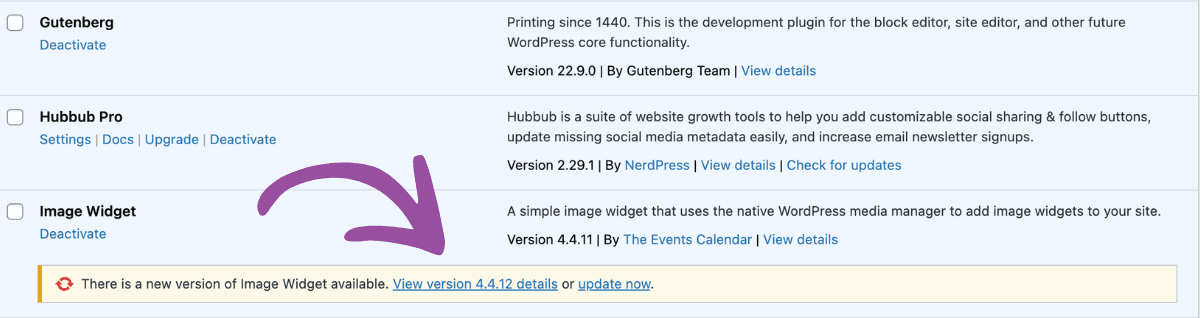
If you see mentions of “breaking changes,” “deprecated APIs,” or “higher minimum PHP,” that’s one clue to slow down and confirm that this plugin works with your setup before clicking update. And if you see mentions related to security, the update may be urgent. When we’re updating sites, truly critical issues move straight to the front of the queue — within hours, not days.
Big user interface changes or feature releases are good candidates to test in a staging or local environment if you can. It’s common for the notes to only say “improvements,” a quick scan of the plugin’s WordPress forum for fresh reports from people who have already updated can save you a headache.
Major WordPress Core updates or version jumps might cause breaking changes or significant shifts to the public-facing portion of your website. But if the version is a third-number patch release (e.g. from version 1.0.0 to 1.0.1), you can usually breathe a little easier. Short changelogs, and small single-purpose plugins (e.g. a social sharing button, a redirect tool) can also be easier, but nothing is risk-free.
Order, cadence, and when to click
The order you do your updates can help prevent breaking things and help you understand exactly which update caused the issue if one occurs.
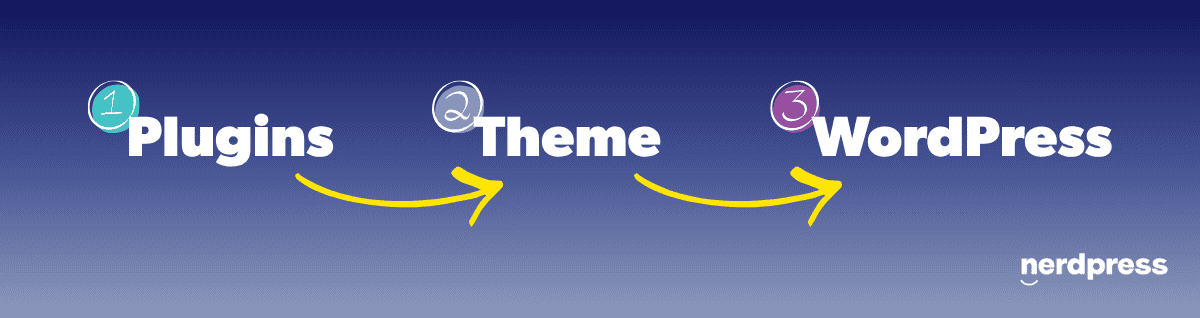
Our general guideline is plugins first, then theme, then WordPress Core. It’s even alphabetical!
“Plugins” → “Theme” → “WordPress”
There’s always some nuance to these things though, and this is where the concept of “dependencies” comes in.
Plugins can declare a dependency against WordPress Core or against another plugin, which limits their compatibility. For example, platform plugins like WooCommerce or GiveWP have a lot of addons or extensions. They might have an update that declares that it’s only compatible with a particular version of WordPress Core, or a version of Woo or Give. In those cases, your cadence might be Plugins, Theme, WordPress, and then Plugins again in order to get the other plugins that have dependencies.
Most importantly, after each phase of your updates, load the front end and admin area of your website and check that key pages and forms work before you move on to the next step. If something breaks, you know exactly which layer caused it.
For a detailed walkthrough of our tried-and-true process, check out our post on the safest way to update WordPress plugins.
Three tools to know about in case something goes wrong
It’s important to know exactly how to get your website running again in case an update does break things because even when you do everything perfectly well, things can still go wrong. Here are three tools that can help you in a pinch:
WP Rollback: If a plugin update breaks some functionality of your website (but not your whole website), you can roll it back with this useful plugin.
Fatal Error Recovery Mode: If your site does encounter a fatal error you’ll (hopefully) get an email letting you know. That email will include a link to put your site into “Recovery Mode.” This essentially sandboxes your plugins so that you can disable the problematic plugin that caused the error.
Backups: If all else fails, it’s vital and necessary that you know how to restore your website from a backup. If you don’t have a daily backup workflow, now’s the time to make it happen.
While it’s never fun to fix things when they break, having a plan for restoring your site gives you better peace of mind and confidence when it comes time to run those updates.
When you know you need help with updates
Maybe you read all of this and thought: That’s a lot to keep in my head while I’m running a business. Fair. Your site is probably one of a hundred things competing for your attention.
That’s what we’re here for.
Our US-based team of Nerds (i.e. real humans!) does this every day. Core, plugin, and theme updates are part of our WordPress support plans. Security-urgent patches get priority attention and touchier changes get extra review and testing, and since we’re backing up your site regularly, we’re able to help with surgical restoration if something breaks, disappears, or acts funky.
The biggest benefit is that we’re monitoring and maintaining hundreds of sites with all kinds of configurations, so we’re able to see when there are issues that could become widespread, providing every site we support with a sort of “herd immunity.” Many of our clients use the same plugins, and if we spot an issue with a specific one, we stop running updates of that plugin on all our clients’ sites until we can figure out a safe path forward. The odds of any one update causing a problem on your site are reduced dramatically by this process.
If that sounds like something you’d like to take off your plate, contact us. We’ll be glad to talk through how we handle updates and whether our approach matches your needs.