Get key takeaways:
Security is one of those parts of maintaining a website that’s easiest when you never have to think about it. And most of the time, you probably don’t.
But there are people out there who make it their business to harm your business by sneaking through tiny windows that can show up when browsing the internet, and that’s one reason we’re here.

All NerdPress-managed sites load securely with HTTPS (“Hyper Text Transfer Protocol Secure”), and we provide our client sites with SSL (TLS) certificates through Cloudflare (and keep an eye on them so they don’t expire), so you and your visitors always have an encrypted connection.
But there’s still a hidden risk if someone tries an old http:// version of a link to your site first, and now we’re taking protection one step further with HSTS.
HSTS (“HTTP Strict Transport Security”) is a browser rule that helps ensure visitors always reach your site over a secure connection, keeping you — and them — protected.
Quick Definitions
A few helpful terms that make website security language easier to understand.
http://An older, less secure way to open a website. The basic system browsers use to talk to websites.https://A safer way to open a website that helps keep information private. The secure version of the system browsers use to talk to websites, with encryption added.- HSTS: A rule that tells browsers always go to the secure version of this site.
HSTS vs. HTTPS: What’s the Difference?
HSTS and HTTPS are similar-sounding acronyms because they’re related.
Imagine http:// and https:// are different ways into a house. HTTP is an old side door without a lock and HTTPS is the front door, with a deadbolt.
Visiting a site over HTTPS is like arriving at a house and going through the locked front door. But a visitor might try to get into the house through the old side door first before being told to go back around to the front.
HSTS is a rule that helps make sure visitors go straight to the locked door and never to the side of the house. They skip the less secure version of your site and go directly to https://. Those old links to your site still exist, but HSTS says “skip the side door and use the locked front door every time.”
Why HSTS Matters
If you log in to your site on a public Wi‑Fi network, such as at a coffee shop, hotel, or airport, you could unknowingly be on a compromised connection.
Without HSTS, your browser might start with an unencrypted request to http:// before being redirected to https://, and a bad actor could intercept that traffic. This is a “man-in-the-middle” attack.
From there, they could send you to a spam website, or worse, take you to a fake version of the website you thought you were going to, and then use that to steal your password or credit card number. 😬
HSTS eliminates that window of opportunity.
How NerdPress Handles HSTS
With our Cloudflare Enterprise service, we automatically enable HSTS for the sites we manage, but if your server already has HSTS headers set, we’ll respect those instead of overriding them.
The goal is one clear, consistent policy rather than competing settings. Either way, your site gets the protection it needs.
One More Way We’ve Got Your Back
Between SSL (TLS) certificates, automatic renewals, and now HSTS, you don’t need to configure anything — it’s already taken care of.
This is just one more behind-the-scenes way we’re keeping your site secure, so you can stress less and focus on what you do best.
Things You Might Be Wondering (FAQ)
HSTS (HTTP Strict Transport Security) is a security header that forces browsers to load your website only over secure HTTPS connections, preventing attackers from intercepting data via insecure HTTP, even if they’re usually redirected to HTTPS.
When a web page is returned to a browser, it includes “HTTP Response Headers,” which are instructions or information that come along with the HTML document itself. HSTS is one of those response headers; it has a name (“strict-transport-security”) and a value that tells the browser how long to remember to always use HTTPS. (It can also tell the browser if the instructions should apply to a site’s subdomain, and if a site is eligible to be added to the official “preload” list.)
It will look something like this:
Strict-transport-security: max-age=63072000
(that’s two years, in seconds)
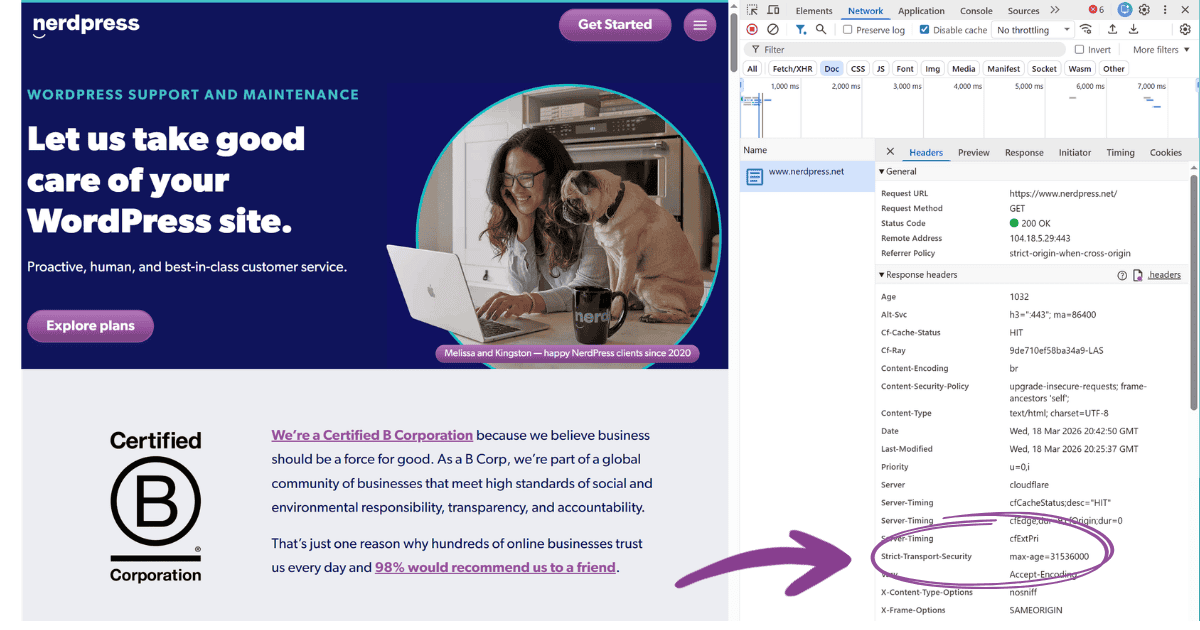
Standard HSTS is remembered after a browser first sees it, which is why it’s most effective for returning visitors, and all NerdPress clients on our Cloudflare Enterprise service are protected by HSTS.
For most WordPress sites, this is fine, since it’s normally repeat visitors, like your Admin users, going to the login page. Their browser will remember the setting for a long time, so it’s all good.
For extremely sensitive sites, like banking websites, the HSTS Preload List provides an extra layer of protection. It’s a list used by the popular web browsers that enforces HTTPS for specific domains.
If a site is on the preload list, the browser will use HTTPS even on a first-time visit, before it ever tries HTTP, which helps prevent downgrade attacks.
Preload has strict requirements and can be difficult to undo quickly, and it strictly requires subdomains to use HSTS as well. In most cases, we don’t think it’s worthwhile to pursue inclusion on the Preload List, but this service is something we can help with if you want it.
Yes, but mainly for returning visitors. Because HSTS helps the browser skip the initial HTTP request and go straight to HTTPS, it can remove one redirect round-trip, shaving off critical time when the visitor is still staring at a blank page.
It’s not strictly required for a site to function, but we strongly recommend it for any site with logins (that includes for your WordPress Admin Dashboard!), forms, membership areas, or e‑commerce because it reduces the risk of man-in-the-middle and downgrade attacks.
You can confirm HSTS is active by looking for the Strict-Transport-Security header.
Online check:
Scan your domain with a security header scanner and look for Strict-Transport-Security in the results.
In Chrome DevTools:
1) Open your site in Chrome
2) Right-click → Inspect
3) Go to Network and refresh the page
4) Click the main document request (your domain) and look under Response Headers for strict-transport-security
If you’re not sure what you’re seeing, email us and we’ll be happy to confirm your current configuration.